
Deploy Without Downtime or Killing Running Work
What to set so a rolling update does not drop requests, kill work in progress, or restart every pod of a Component at once.
This page explains how a rolling update replaces the pods of a Component, and what to set so that a new deployment does not drop requests, kill work in progress, or restart every pod at once.
How a rolling update works
When you save a new image tag or new values for a Component, its pods are
replaced in a rolling update: a few new pods start, old pods are stopped
as new ones become ready, and this repeats until every pod runs the new
version. Two things decide whether users notice:
- Readiness. A new pod receives traffic only after its readiness check
passes. Without a readiness check, it receives traffic as soon as the
container starts, even if the application is still loading. - Shutdown. An old pod is sent
SIGTERMand then has a grace period to
finish. Whatever is still running when the grace period ends is killed.
sequenceDiagram
    participant K as Kubernetes
    participant N as New pod
    participant O as Old pod
    K->>N: Start
    N-->>K: Readiness check passes
    K->>O: Remove from traffic, send SIGTERM
    O-->>K: Finishes in-flight work and exits
    Note over O: Killed if still running after the grace period
Find which application chart your Component uses
The available settings differ between the two application charts. In SVIEW,
go to Applications → Deployments, open the Component, and look at
CHART/PATH on the Values tab. A chart name ending in -v2 is the v2
chart; otherwise it is the original chart. You change the settings below in
HELM VALUES on the same tab, then click Save.
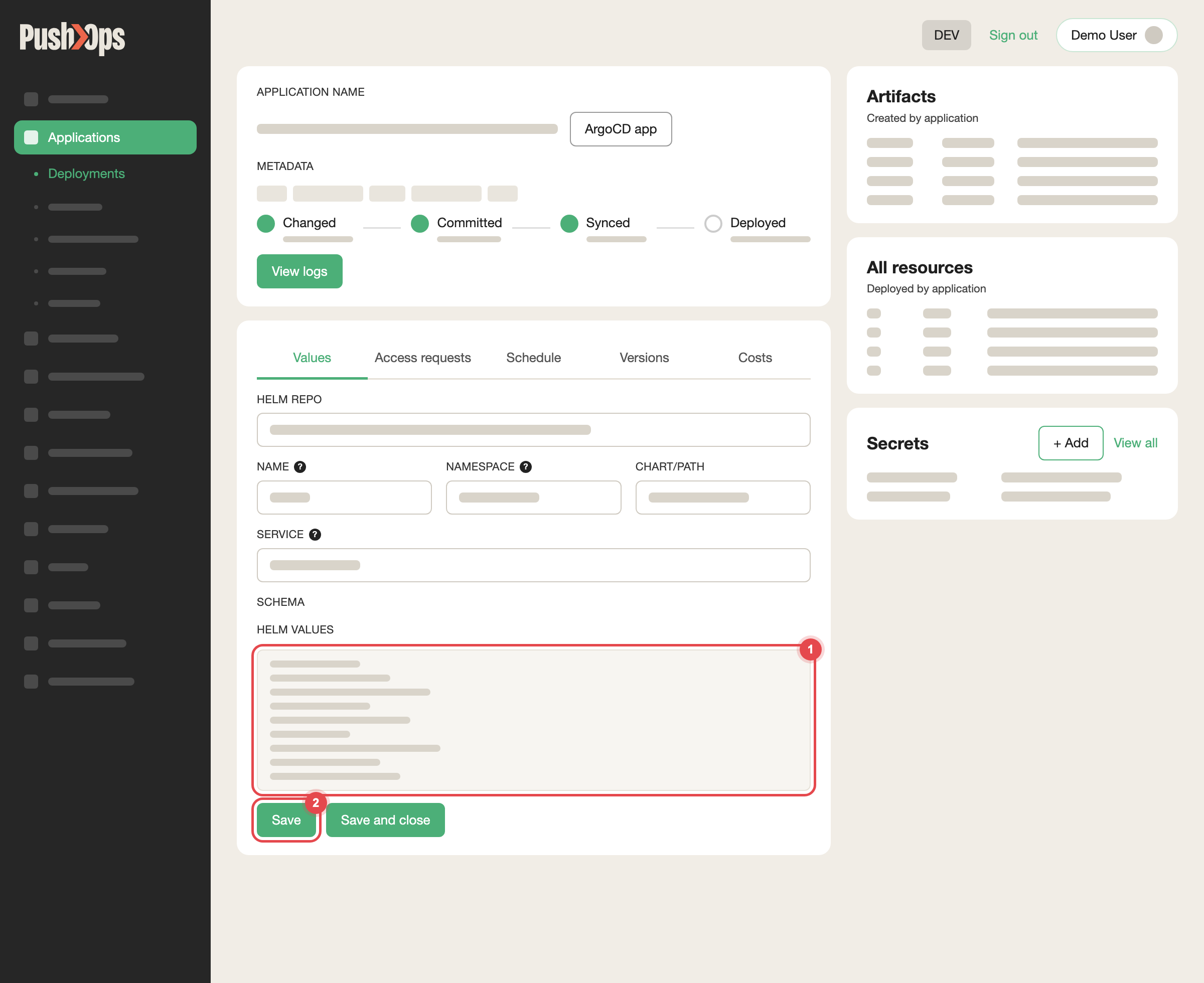
Edit HELM VALUES on the Values tab, then click Save
Settings that control a rollout
| What | Original chart | v2 chart |
|---|---|---|
| Replica count | replicaCount (default 1) | deployment.replicas (default 1; -1 when the autoscaler is on) |
| Rollout pace | updateStrategy — a standard Kubernetes strategy block; when unset, Kubernetes defaults apply (maxSurge: 25%, maxUnavailable: 25%) | Fixed at maxUnavailable: 1, with the Kubernetes default maxSurge: 25%. Not settable |
| Readiness check | On by default, HTTP GET / on the http port; override with readinessProbe | Off by default; enable one of probes.http, probes.tcp or probes.exec |
| Shutdown grace period | terminationGracePeriodSeconds (default 30) | Not settable; the Kubernetes default of 30 seconds applies |
| preStop hook | preStop.enabled and preStop.command | Not available |
| PodDisruptionBudget | podDisruptionBudget.enabled with minAvailable | Not available |
For a setting marked not settable or not available, raise a request in your
dedicated Slack channel if your workload needs it.
Steps to deploy without dropping requests
-
Run at least two replicas. With one replica there is always a moment
when no pod is serving, and on the v2 chart the only pod can be stopped
before its replacement is ready. With the autoscaler, set the minimum to 2
or more — see Cluster Autoscaling. -
Make sure a readiness check is on and meaningful. Point it at an
endpoint that answers only when the application can really serve requests,
including its database and other dependencies. On the v2 chart, for example:probes: http: enabled: true path: /healthz port: http -
Handle
SIGTERMin your application. OnSIGTERM, stop accepting new
work, finish the requests already in progress, close connections, and exit.
An application that ignores the signal is killed when the grace period ends. -
On the original chart, give shutdown enough time. Add a short preStop
delay so that traffic stops reaching the pod before it receivesSIGTERM,
and keep the grace period longer than the delay plus your shutdown time:terminationGracePeriodSeconds: 60 preStop: enabled: true command: ["sh", "-c", "sleep 15"]The preStop hook is only applied while health checks are enabled for the
Component. -
Keep the rollout gentle. On the original chart, a rollout that never
drops below the current replica count adds one pod at a time:updateStrategy: type: RollingUpdate rollingUpdate: maxUnavailable: 0 maxSurge: 1
Leave headroom for the extra pods
During a rollout the old and new pods run side by side, so the Component
briefly needs more CPU and memory than usual. If the cluster has no room, the
new pods wait in Pending while nodes are added, and the rollout slows down.
A large maxSurge, or several resource-heavy Components deployed at the same
time, can make many pods start at once. Deploy heavy Components one after
another, keep maxSurge small, and set realistic resource requests — see
Workload Resources and Health Checks.
Long-running work and background jobs
A rolling update stops old pods regardless of what they are doing, and so do
node maintenance and autoscaling. A calculation that takes longer than the
grace period is killed part-way. Choose one of these:
- Make the work resumable. Save progress as you go, or pull items from a
queue and acknowledge each one only when it is done, so a new pod picks up
where the old one stopped. - Run it as a CronJob instead of inside your web or API Component. A job
runs to completion in its own pod and is not replaced when you deploy the
application. UsejobType: uninterruptiblewithdedicatedNodes: trueto
keep it on its own on-demand nodes — see CronJobs.
Protect against node maintenance
A rolling update is not the only time pods are replaced. When nodes are
drained for maintenance or scaled down, a PodDisruptionBudget keeps a minimum
number of pods running. On the original chart:
podDisruptionBudget:
  enabled: true
minAvailable: 1Use it only with two or more replicas. With a single replica and
minAvailable: 1, the pod can never be moved, which blocks node maintenance.
Verify it worked
Watch the next deployment on the Component's Logs tab, or with kubectl
through Namespace Access:
kubectl rollout status deployment/<deployment-name> -n <namespace>
kubectl get pods -n <namespace> -w
New pods should reach Running with all containers ready before old pods
disappear, and your application logs should show a clean shutdown for each
old pod rather than an abrupt stop.
Related articles
- Workload Resources and Health Checks — resources and health checks
- Restart an Application or a Single Pod
- CronJobs — scheduled and long-running jobs on dedicated nodes
- Cluster Autoscaling — replicas, autoscaling and spot interruptions
- Pod Restarted During Node Maintenance
- Deployments
Updated 23 days ago