
Cannot Sign In to SVIEW or Teleport
Find out why you cannot sign in to SVIEW or Teleport, or why you see nothing after signing in, and what to do about it.
If you cannot log in to SVIEW or Teleport, are sent back to the sign-in page, or get in but see nothing, this page helps you find out why and what to do.
SVIEW has no username and password of its own, so there is no SVIEW password to reset. You sign in through your organisation's single sign-on (Google, GitLab, Okta or Microsoft Entra ID). Teleport is different: it has its own password, which you set yourself from SVIEW.
Find your symptom
| What you see | Go to |
|---|---|
| After you pick a provider, you land back on the Sign in page | Wrong sign-in button or account, then Not in the allowed group or domain |
| Your identity provider shows an error after you pick it | Problem on the identity provider side |
| Nobody in your organisation can sign in | Problem on the identity provider side |
| You are signed in, but see no Services or the wrong ones, or Access Denied | Signed in but seeing nothing |
You cannot sign in to Teleport with tsh or Teleport Connect | Cannot sign in to Teleport |
| Teleport shows "No Resources Found" | Teleport Shows No Resources After Access Is Approved |
tsh fails with "expected PEM encoded private key" | Teleport Login Fails With a PEM Private Key Error |
Wrong sign-in button or account
The SVIEW Sign in page says "Choose a provider to continue" and shows one Login with … button for each sign-in option your organisation has connected. Only one of them is usually meant for you.
- Use the button your team normally uses. If you are not sure which one, ask a colleague who can sign in.
- Check which account your browser is signing in with. A browser that is already signed in to a personal Google or GitLab account often uses it without asking. Open a private browser window and sign in again, choosing your work account.
- Check you are on your organisation's own SVIEW URL, not one bookmarked from another organisation or an old link.
Not in the allowed group or domain
SVIEW lets you in only if your identity provider says you belong. Depending on how your organisation was set up, that means one of these:
- you are a member of a specific group in your identity provider (a GitLab group, a Google group or a Microsoft Entra ID group), or
- your email address is in your organisation's Google Workspace domain.
If you are not in the group, or the group was renamed or deleted, the sign-in fails and you land back on the Sign in page. A group that looks unused in your identity provider may still be the one that grants SVIEW access, so check before deleting one.
- Ask your identity provider administrator to check that you are in the group your team uses for SVIEW.
- If the group was deleted, re-create it with the same name and add your team back.
- Sign out of your identity provider, then sign in to SVIEW again. Group membership is read at sign-in, so a change does not apply to a session you already have.
If your team signs in with a group that has never been connected to SVIEW, or the person is outside your identity provider (for example a contractor), that needs a change on our side. See Add or Remove a Team Member.
Problem on the identity provider side
If your identity provider itself shows an error after you pick it, or nobody in your organisation can sign in at once, the cause is usually on the identity provider side rather than with your account.
- The SSO client secret expired. Microsoft Entra ID client secrets always expire. The error usually mentions
invalid_clientorAADSTS7000222. See Renew an Expiring SSO Client Secret. Okta uses a signing certificate instead, which also expires. - Your account is disabled or locked in your identity provider, or your password or multi-factor setup there needs attention. Fix this with your own IT team; SVIEW cannot see or change it.
- The SVIEW application was changed or removed in your identity provider, for example its redirect URI or group settings. Put it back as it was, then raise a request if sign-in still fails.
Signed in but seeing nothing
Signing in and being allowed to see a Service are two separate things.
- No Services, or not the ones you expect: each Service has its own Read, Write and Admin entries, and without Read its applications are hidden. Ask someone who manages Services to add you, by your email exactly as you sign in or by your group. See Service Access Control.
- A page shows "Access Denied — You do not have permission to view this page.": your role does not include that page. Raise a request naming the page and the access you need.
- You were just added to a group: sign out and back in, so SVIEW reads the new membership.
Cannot sign in to Teleport
Teleport signs you in with your email address and a Teleport password, not with the SSO button you use for SVIEW. The account is not ready until you set that password yourself.
-
Sign in to SVIEW.
-
Click your name in the top-right corner and choose Integrations.
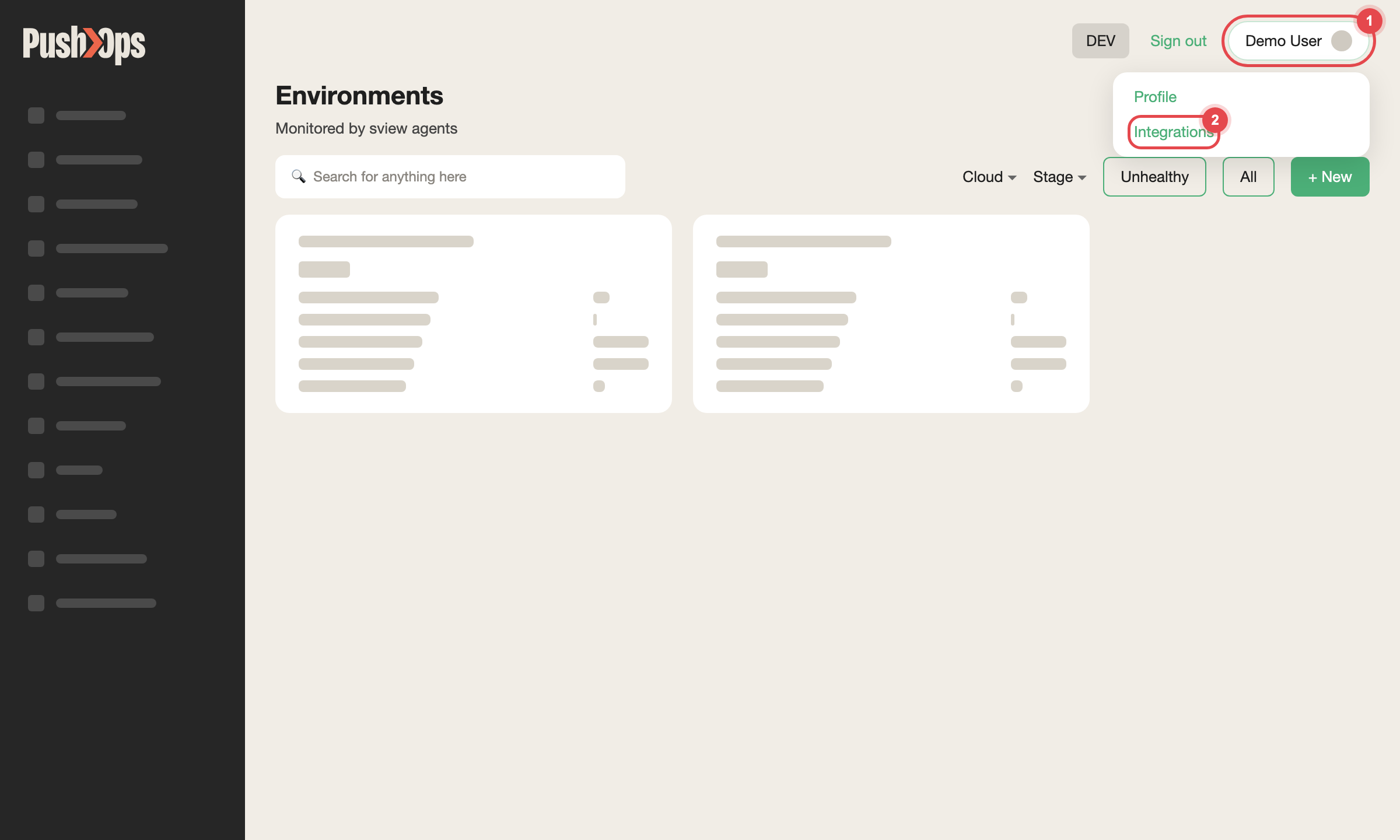
Click your name in the top-right corner, then Integrations
-
On the Teleport card, click Connect. SVIEW shows a link where you set your Teleport password.
-
Sign in to Teleport with your email address and that password:
tsh login --user [email protected] --proxy https://teleport.manage.cto2b.eu
While the password is not yet set, the Teleport card shows In progress. If you have lost your password or your second factor, click Reconnect on the card to reset both yourself — see Set Up Teleport Sign-In With an Authenticator App or Security Key.
Once you are signed in to Teleport, you still need an approved Access Request before databases or namespaces appear.
Still having issues?
Raise a request in your dedicated Slack channel. Put all of this in the first message:
- your name and the email address you sign in with
- whether it is SVIEW, Teleport or both
- which Login with … button you used, and your organisation's SVIEW URL
- the exact error text, or a screenshot of the page where it stops
- when it last worked, and whether colleagues can sign in
- for Teleport, the command you ran and its full output
Never include a password, client secret or token in the message.
Related articles
- Set Up Your PushOps Access — how your team signs in to SVIEW
- Add or Remove a Team Member — groups, contractors and Teleport setup
- Service Access Control — who can see each Service
- Renew an Expiring SSO Client Secret — when nobody can sign in
- Teleport Shows No Resources After Access Is Approved
- Teleport Login Fails With a PEM Private Key Error
Updated 23 days ago