
Access Requests
How to request time-limited access to a Kubernetes namespace or database in SVIEW, get it approved, and use it before it expires.
You need to reach a platform resource directly — a Kubernetes namespace or a
database — and you do not have standing access to it. This article covers the
repeatable workflow: raising an access request, getting it approved, how long
it lasts, and using the access once it is granted.
Before you start
You need to be able to sign in to SVIEW and Teleport. If you have not done
that yet, follow Set Up Your PushOps Access first.
Why access requests exist
Direct access to production databases and cluster namespaces is not open by
default. Instead, you request it in SVIEW, an approver reviews it, and Teleport
issues short-lived credentials. This gives a full audit trail and keeps
production access intentional and time-bounded.
What does not need an access request
Provisioning a new database, cache, or other Component is self-service. You do
that directly from the Catalog, described in Key Concepts. Only direct
connections — a database session, or kubectl against a namespace — go through
an access request.
Raising a request
-
Go to Applications → Deployments and open the Component you need
access to — the database, or the application whose namespace you need. -
Open its Access requests tab and click New. The request applies to
that Component.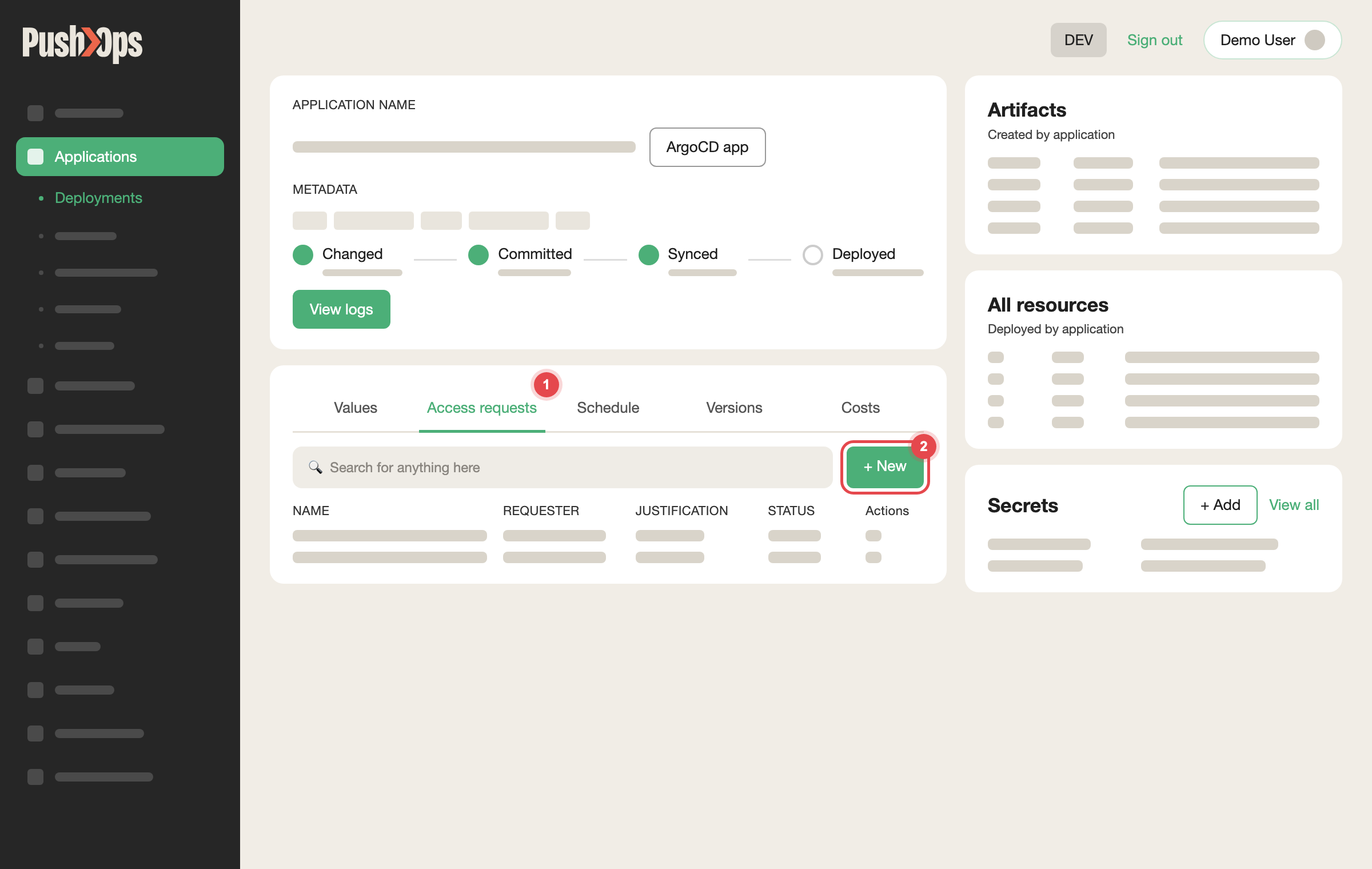
Open the application's Access requests tab and click + New
-
Choose the Access role you need.
-
Choose how long you need it in Expiration time (TTL). The choices
depend on the role — see How long access lasts below. -
Add a Justification. It is required, it appears in the audit log, and a
specific reason usually speeds up approval. -
Click Create.
Your request status changes to Pending.
Getting the request approved
A teammate who holds the Approver role in your organisation can approve the
request. If no internal approver is available, CTO2B support can approve it.
Approvals can be made in SVIEW or through the Slack approval flow.
Once approved, the status changes to Approved and Teleport issues temporary
credentials.
Using approved access
- Database access — follow Connect to a Database to
connect through Teleport. - Kubernetes namespace access — run
tsh kube login <cluster-name>to set
up your kubeconfig context. See Namespace Access for the
full sequence.
How long access lasts
Every role comes with a fixed list of durations, and the Expiration time
(TTL) field offers only the durations set for the role you selected. You
cannot type in your own value. Common choices are 2 hours, 8 hours, 3 days and
3 months, but each role has its own list:
- Read-only roles usually offer longer durations, because they cannot
change anything. - Privileged roles, such as a database superuser or read-write access, and
roles for production Environments usually offer shorter ones. A production
superuser role may stop at 8 hours.
Roles are set up per organisation, and a role for production is often a
separate role from its non-production equivalent, so the same kind of access
can have different durations in different Environments. If the field shows
No available values found, the role has no durations configured: raise a
request to have them added (see Asking for different durations below).
Why privileged access is time-limited
Short-lived access limits how long a lost laptop, a leaked credential or a
forgotten session stays useful to anyone else. It also means every period of
access to production data has an owner, a reason and an end date in the audit
log, which is what auditors ask to see. Keeping the longest durations for
read-only roles gives your team long-running visibility without standing write
access to production.
When access expires
Credentials are valid only for the duration you chose on the access request.
Once that time is up, new connections and commands are refused. Do not rely on
an open session outliving the expiry: plan long-running work, such as a
database migration, to finish well before it, or choose a longer duration when
you request.
Access is not extended automatically, and an approved request cannot be
lengthened. To keep working, raise a new request for the same role and have it
approved, then connect again.
Asking for different durations
If the durations offered for a role do not fit how your team works, raise a
request in your dedicated Slack channel with:
- the role name, exactly as it appears in the Access role list
- the Environment or Environments it applies to
- the durations you would like offered
- why the current options do not work for you
For privileged roles on production we may suggest a shorter ceiling than you
asked for, or propose a read-only role with a longer duration alongside it.
A change applies to requests raised after it is made; access that is already
approved keeps the expiry it was granted with.
Reviewing past requests
The Access requests screen shows the full history of your team's requests:
pending, approved, denied, and expired. The same history is visible in
Audit Logs.
Related articles
- Set Up Your PushOps Access — signing in to SVIEW and Teleport for the first time
- Add or Remove a Team Member — onboarding a new person and removing a leaver
- Namespace Access
- Connect to a Database
- User Profile
Updated about 1 month ago