
User Profile
Check your SVIEW identity, roles and active access, and generate a personal access token for external tools from your User Profile.
Your User Profile page in SVIEW is where you check who the platform thinks
you are, what you currently have access to, and where you generate a personal
token for external tools.
Opening your profile
Click your name in the top-right corner of SVIEW, next to Sign out, and choose Profile.
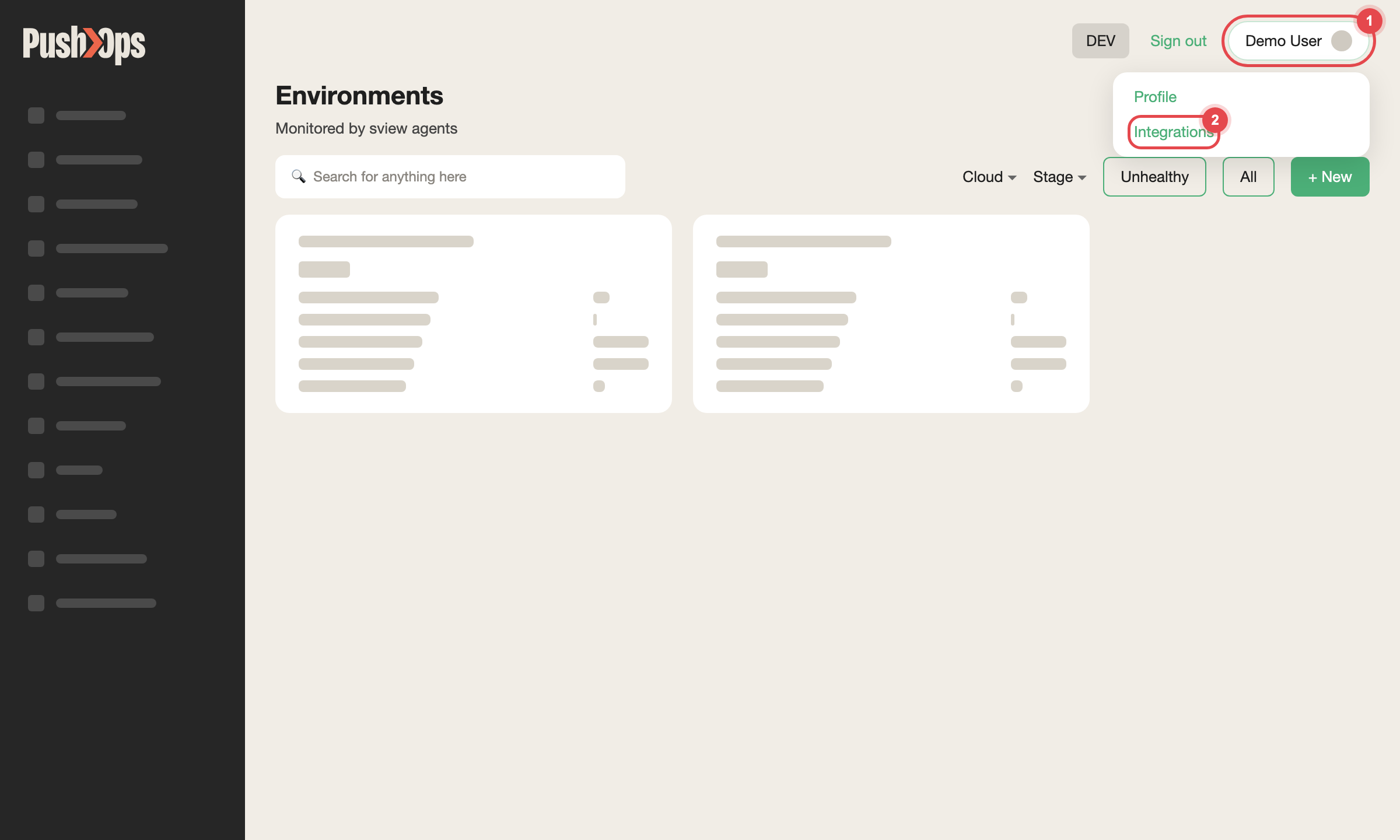
Figure 1 — Click your name in the top-right corner, then Integrations
What the profile page shows
| Section | What it tells you |
|---|---|
| Account details | Your name, email, and organisation |
| Active roles | The Teleport roles currently assigned to your account |
| Active access requests | Access grants currently in effect for your user |
| Audit history | A log of the actions your account has taken on the platform |
Changing your name or email
Your identity in SVIEW comes from your organisation's identity provider (SSO).
SVIEW does not store a separate name or email you can edit.
To change either one, make the change in your identity provider. It syncs into
SVIEW the next time you log in.
Service-level access
Access in SVIEW is managed per Service. Users and groups can be assigned
Read, Write, or Admin access on each Service, so an administrator
can control precisely who may view, edit, or fully manage it.
If you need access to a Service you cannot see, or your access level looks
wrong, raise a request. How to set these entries is covered in
Service Access Control.
Organisation-level roles
Organisation-level roles — including who may approve access requests — are
assigned by your administrator, or by CTO2B during onboarding. To change a
role, raise a request.
Personal access token for external tools
A Personal Access Token (PAT) lets an external tool read your SVIEW data on
your behalf.
-
Click your name in the top-right corner of SVIEW.
-
Choose Integrations.
-
In Personal Tokens, click New Token.
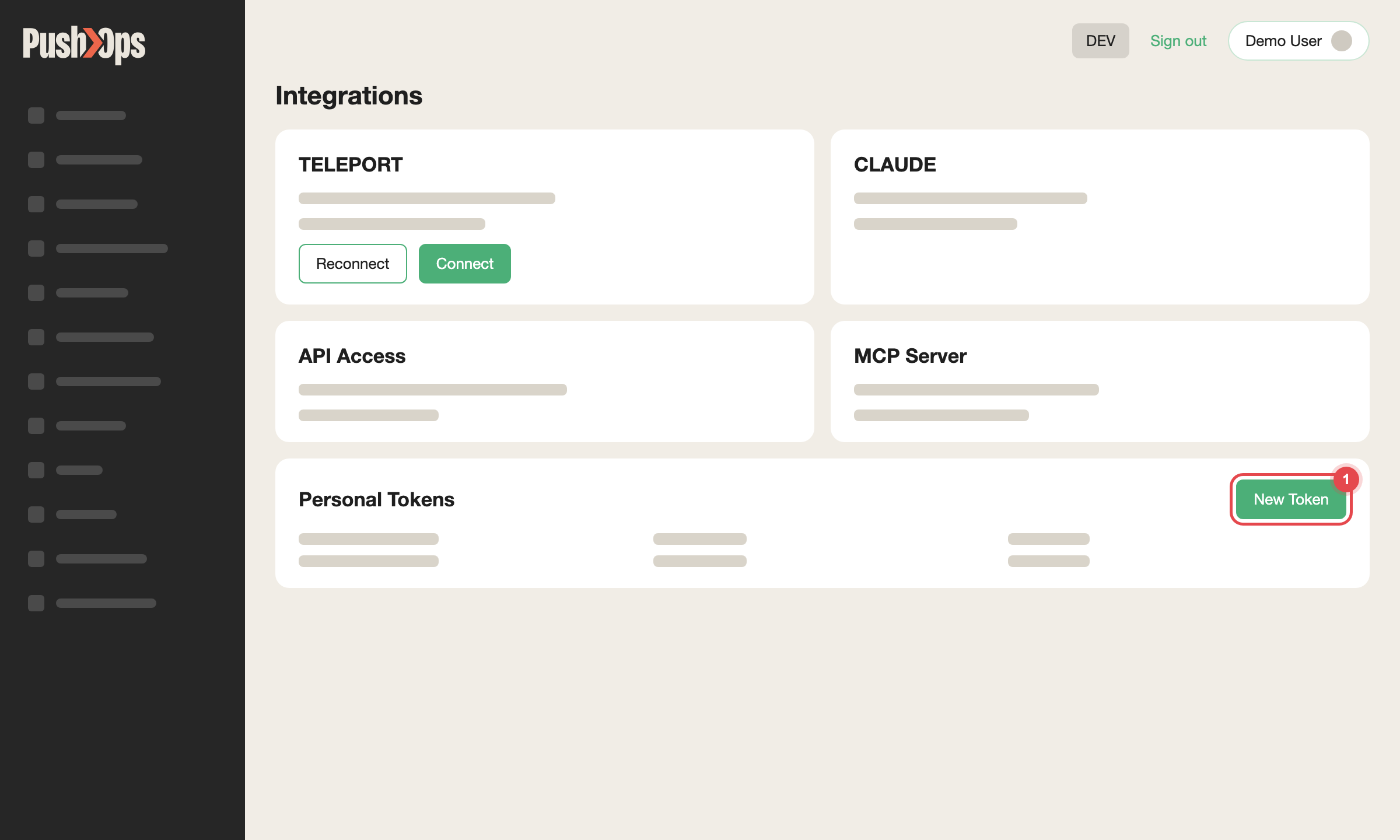
Figure 2 — Integrations → Personal Tokens → New Token
The token gives read-only access through the MCP interface, which is what lets
AI tools read platform state for you. Treat it like a password: it carries your
identity, so store it in a secret manager rather than in a repository or a chat
message.
Related articles
Updated about 1 month ago