
Set Up Teleport Sign-In With an Authenticator App or Security Key
Set up your Teleport password and second factor, sign in with tsh or the browser, and reset your account if you lose your device.
This guide shows you how to set up your Teleport account for the first time with a password and a second factor (two-factor authentication, 2FA or MFA), how to sign in with tsh and in the browser, and what to do if you lose your phone or security key.
Every Teleport sign-in needs your email address, your Teleport password and a second factor. Teleport does not use the single sign-on button you use for SVIEW, and a second factor cannot be switched off.
Supported second factors
| Second factor | Examples | Works with |
|---|---|---|
| Authenticator app (one-time code) | Google Authenticator, Microsoft Authenticator, 1Password, Authy | Browser, tsh, Teleport Connect |
| Security key or device passkey (WebAuthn) | A YubiKey or other FIDO2 key, Touch ID, Windows Hello | Browser, tsh, Teleport Connect |
You choose one while setting up your account. You can add more devices later, and registering a second one is the best protection against being locked out.
Prerequisites
- You can sign in to SVIEW. If you cannot, see Cannot Sign In to SVIEW or Teleport.
- Your authenticator app is installed on your phone, or your security key is to hand.
- For command-line access, the Teleport client
tshis installed, or the Teleport Connect desktop app.
Set up your account
-
Sign in to SVIEW.
-
Click your name in the top-right corner and choose Integrations.
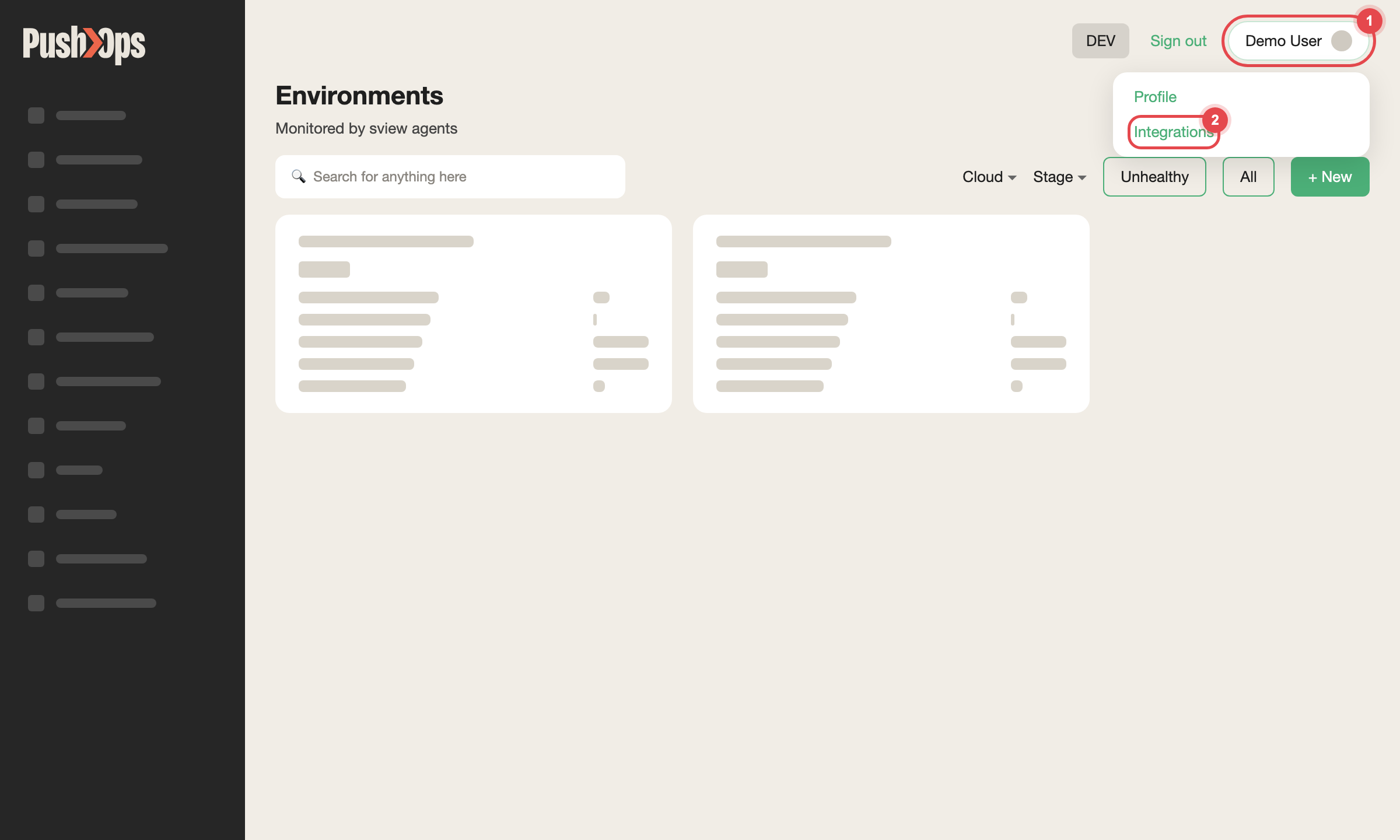
Click your name in the top-right corner, then Integrations
-
On the Teleport card, click Connect. SVIEW shows a link where you set your Teleport password. Copy it and open it in your browser.
-
Choose a password and enter it twice.
-
Register your second factor:
- Authenticator app: scan the QR code with the app, then enter the six-digit code the app shows.
- Security key or passkey: choose the hardware key option, then touch the key or confirm with your fingerprint or face when the browser asks.
-
Finish the form. You are signed in to the Teleport web UI.
While the password is not yet set, the Teleport card in SVIEW shows In progress. Once setup is complete it shows Connected.
The link is personal and valid for a limited time. Do not share it. If it has expired before you used it, click Reconnect on the Teleport card to get a new one.
Sign in with tsh
tsh login --user [email protected] --proxy https://teleport.manage.cto2b.euEnter your password, then your second factor: touch your security key, or type the code from your authenticator app. If tsh waits for a security key but you use an authenticator app, ask for the code prompt explicitly:
tsh login --user [email protected] --proxy https://teleport.manage.cto2b.eu --mfa-mode otpCheck the session:
tsh statusA working session shows your email address, your roles and a certificate expiry time in the future. Sessions are short-lived, so run tsh login again when it expires.
Sign in in the browser
- Go to
https://teleport.manage.cto2b.eu. - Enter your email address and your Teleport password.
- Enter the code from your authenticator app, or touch your security key when asked.
Teleport Connect asks for the same three things.
Add a backup device
Once you are signed in to the Teleport web UI, open your account settings and add another second factor, for example a second security key or an authenticator app on another device. With two devices registered, losing one does not lock you out.
If you lose your second factor
If your phone is lost or replaced without moving the authenticator app, or your security key is lost, you can reset your Teleport account yourself from SVIEW. CTO2B cannot recover your old device or read your codes for you.
- Sign in to SVIEW. SVIEW uses your organisation's single sign-on, so it still works without your Teleport second factor.
- Go to Integrations and click Reconnect on the Teleport card.
- Open the new link and set a password and a new second factor, as in Set up your account.
Your Teleport roles and approved access requests are not tied to the device, so you keep them. If the new link does not let you register a new second factor, or you want the lost device removed from your account straight away, raise a request in your dedicated Slack channel.
The same steps work if you forget your Teleport password.
If you cannot sign in to SVIEW either, fix that first: see Cannot Sign In to SVIEW or Teleport.
If your account is locked
After too many failed sign-in attempts, Teleport locks your account for a while and the Teleport card in SVIEW shows Locked. Click Unlock on the card, then sign in again, checking the password and the code carefully.
Still having issues?
Raise a request in your dedicated Slack channel with your sign-in email address, the command you ran or the page where it stopped, and the exact error text. Never include your password, a reset link or a one-time code in the message.
Related articles
- Cannot Sign In to SVIEW or Teleport — sign-in problems in SVIEW and Teleport
- Add or Remove a Team Member — onboarding a new person, including Teleport setup
- Access Requests — what you need before databases or namespaces appear
- Teleport Login Fails With a PEM Private Key Error
- Teleport Shows No Resources After Access Is Approved
Updated 23 days ago