
Temporary AWS Console Access Through Teleport
Get temporary, approved access to the AWS Console through Teleport and SVIEW instead of IAM users with long-lived credentials.
This guide shows you how to get temporary, approved access to the AWS Console through Teleport and SVIEW, instead of creating IAM users with long-lived credentials.
Access works the same way as any other access request: someone asks, an approver agrees, and the access expires on its own. There are no static IAM users or access keys to manage or rotate, and every grant is in the audit trail.
How it works
CTO2B sets up an AWS access role for your Environment: an IAM role with the permissions it carries. People do not hold that role permanently. They raise an access request for it, and once it is approved they open the AWS Console through Teleport with that role.
- One role, one account. An access role gives access to the AWS account of the Environment it belongs to.
- Permissions are set on the role. Ask only for what the task needs rather than full administrator access. You can have several access roles with different permissions — for example read-only for most people, and a broader role for the few who need it.
- Sessions are time-limited. An AWS Console session lasts up to one hour by default, and the access itself ends when the access request expires.
Setting up an access role
Raise a request saying which Environment the role is for and what people need to do in the AWS Console — for example "read-only access to S3 and CloudWatch logs in production". CTO2B creates the access role with matching permissions and tells you its name. To change what a role can do later, raise a request the same way.
Getting access
-
In SVIEW, open the application the access role is available on — CTO2B tells you which one when it sets the role up — and on its Access requests tab click New. The Access requests page in the sidebar only lists requests; you cannot raise one there.
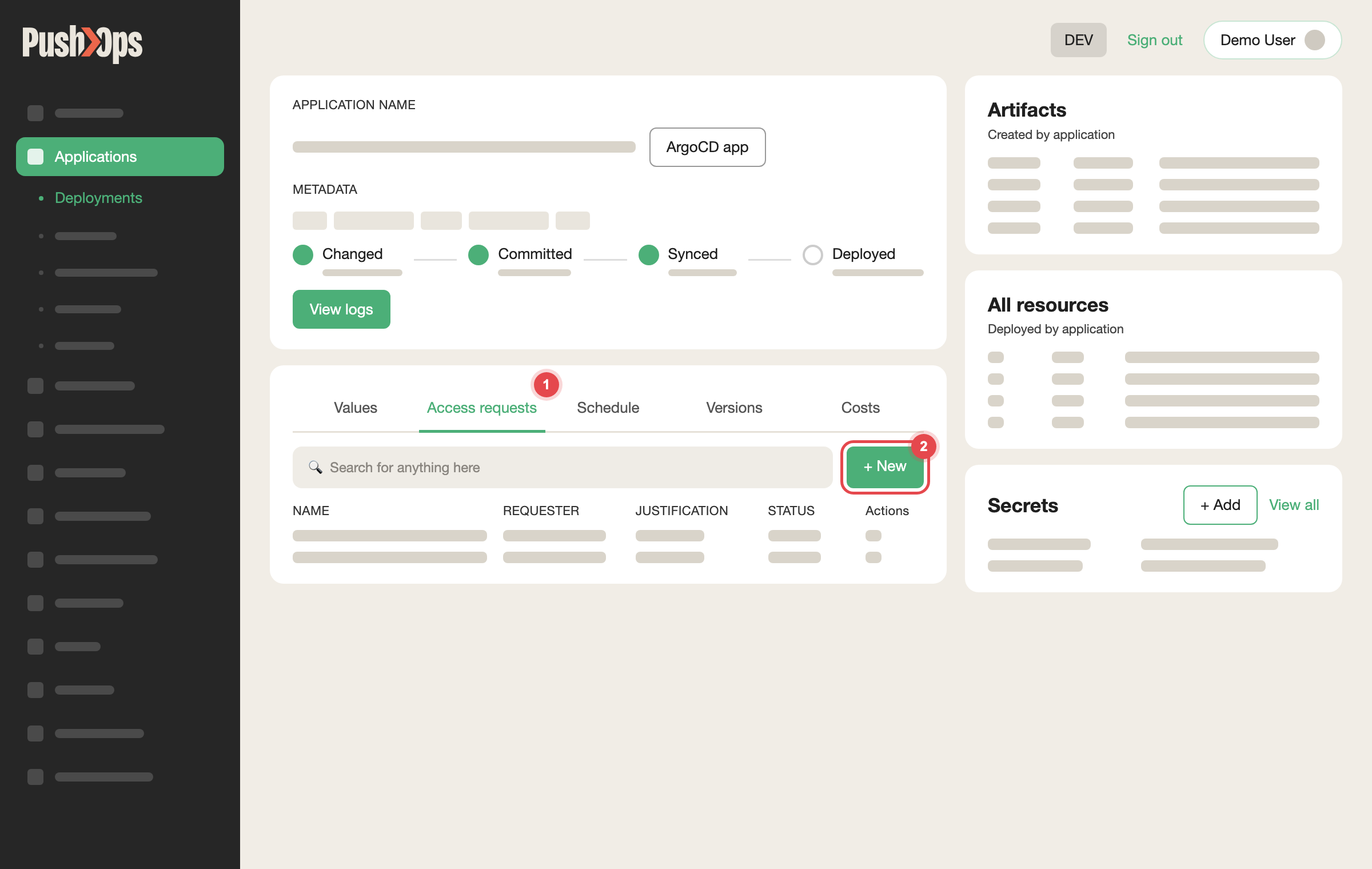
Open the application's Access requests tab and click + New
-
Select the AWS access role and add a reason. The reason appears in the audit log and usually speeds up approval.
-
Wait for approval. A teammate with the Approver role approves it, in SVIEW or through the Slack approval flow.
-
Once the request shows Approved, log in to the Teleport Web UI and launch the AWS Console from there. It opens signed in with that role.
If you do not have a SVIEW and Teleport account yet, follow Set Up Your PushOps Access first.
Verify it worked
The AWS Console opens in the account of your Environment, signed in with the access role. If an action is refused, the role does not carry that permission: raise a request to change the role rather than asking for a broader one.
When access ends
When the access request expires, the AWS Console can no longer be launched with that role. Raise a new request — access is not extended automatically. Past requests stay visible under Access requests and in Audit Logs.
Related articles
- Access Requests — raising and approving requests
- AWS S3 and IAM Access — access for applications rather than people
- Attach a Cloud IAM Role
- CTO2B Access to Your Production Environment
Updated 23 days ago