
Database Refuses Connections With "Too Many Connections" or "Too Many Clients"
Confirm that a database has hit its connection limit, find what is holding the connections, and fix pool sizing or raise the limit.
If your database rejects new connections, or your application returns 500 errors because its connection pool is exhausted (full, out of connections, timing out), the database has hit its connection limit. This page explains how to confirm it, find what is holding the connections, and fix it.
Symptoms
The database rejects the connection with one of these errors:
| Engine | Error |
|---|---|
| MySQL, MariaDB | ERROR 1040 (HY000): Too many connections |
| PostgreSQL | FATAL: sorry, too many clients already |
| PostgreSQL | FATAL: remaining connection slots are reserved for non-replication superuser connections |
| PostgreSQL 16 and later | FATAL: remaining connection slots are reserved for roles with the SUPERUSER attribute |
Or the application never reaches the database and its own pool gives up first. Typical messages:
HikariPool-1 - Connection is not available, request timed out after 30000ms
sqlalchemy.exc.TimeoutError: QueuePool limit of size 5 overflow 10 reached
Error: timeout exceeded when trying to connect
Pool exhaustion often shows up as intermittent 500 errors under load, or right after a deployment or a scale-up, while the database itself looks healthy.
Cause
Every managed database accepts a fixed maximum number of connections, set by the max_connections parameter. Each pod of your application opens its own pool of connections, so the total grows with every replica. When the sum of all pools, plus migrations, cron jobs and people connected through Teleport, reaches the limit, new connections are refused.
The two errors mean different things:
- The database refuses connections — the server-wide limit is reached.
- The application pool times out — the pool in one pod is full because its connections are busy or leaked. The database may still have free slots.
Check the current limit
-
In the SVIEW sidebar, go to Health check and open the database. The page it opens is titled Data services.
-
In the card with the Users, Parameters and Maintenance tabs, open Parameters.
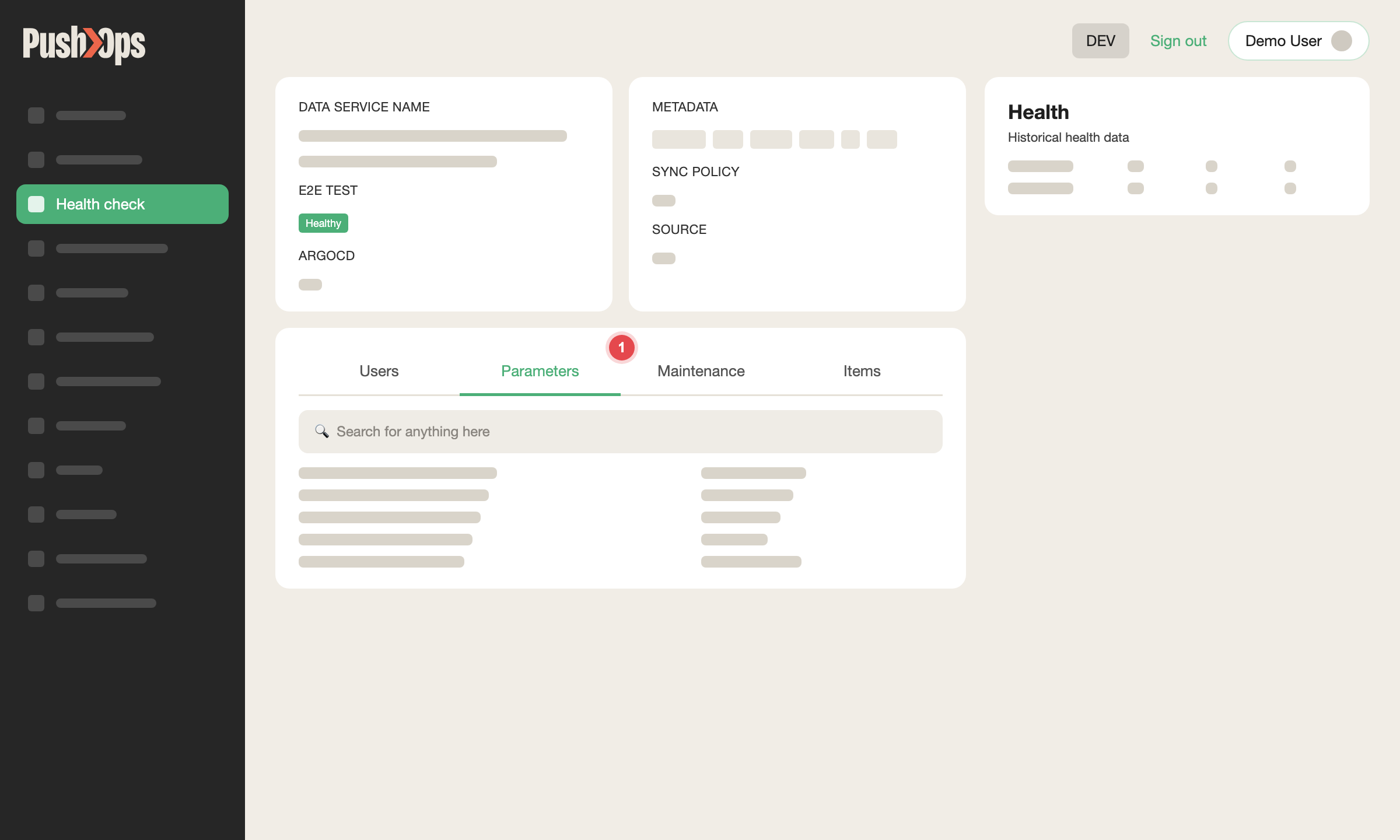
Health check → the database → Parameters
-
Search for
max_connections. The VALUE column shows the limit.
Unless it has been changed for you, the limit is the cloud provider's default, which scales with the memory of the instance size. On AWS RDS the default is roughly one connection per 12 MB of instance memory for MySQL and one per 9.5 MB for PostgreSQL, so a small instance allows far fewer connections than a large one. PostgreSQL also keeps a few of those slots back for administrator roles, which is why ordinary users are refused slightly before the limit.
Find who holds the connections
Connect with a role that can see other sessions, as described in Connect to a Database. If the output lists only your own session, your role cannot see the others: request a role with wider access, or raise a request for CTO2B to run the query for you.
When the database is completely full, your own connection may be refused as well. PostgreSQL keeps reserved slots for administrator roles, so connecting with an admin role usually still works.
PostgreSQL:
-- Limit and current total
SHOW max_connections;
SELECT count(*) FROM pg_stat_activity;

-- Connections by user, client address and state
SELECT usename, client_addr, application_name, state, count(*)
FROM pg_stat_activity
GROUP BY usename, client_addr, application_name, state
ORDER BY count(*) DESC;

-- Sessions idle inside an open transaction, oldest first
SELECT pid, usename, client_addr, now() - state_change AS idle_for
FROM pg_stat_activity
WHERE state = 'idle in transaction'
ORDER BY idle_for DESC;
MySQL and MariaDB:
-- Limit, current total and the highest count since the last restart
SHOW VARIABLES LIKE 'max_connections';
SHOW STATUS LIKE 'Threads_connected';
SHOW STATUS LIKE 'Max_used_connections';

-- Connections by user, client host and state
SELECT user, SUBSTRING_INDEX(host, ':', 1) AS client, command, count(*)
FROM information_schema.processlist
GROUP BY user, client, command
ORDER BY count(*) DESC;
The client address is a pod IP, so a large group from many addresses under one user is usually one application scaled out across many pods. Many idle (PostgreSQL) or Sleep (MySQL) connections mean pools are holding more than they use. Many idle in transaction sessions usually mean the application opens a transaction and does not commit or roll it back — a connection leak.
Fix
-
Size the pools to the limit. Work out the worst case and keep it below
max_connectionswith headroom:total = pods of each application × pool size per pod, summed over every application on the databaseUse the maximum replica count, not the current one. Autoscaling can multiply the total — see Cluster Autoscaling and Event-Driven Autoscaling with KEDA — and during a rolling deployment old and new pods run side by side for a short time. Leave about 20% of the limit free for migrations, cron jobs, Teleport sessions and platform monitoring.
For example, with
max_connectionsof 200: two applications with up to 6 pods each at a pool size of 10 use 120 connections, leaving room. At a pool size of 20 they need 240 and will be refused under load. -
Close idle and leaked connections. Set an idle timeout and a maximum connection lifetime in your pool, return every connection after use, and make sure every transaction is committed or rolled back. To clear the backlog immediately, end the stuck sessions if your role allows it —
SELECT pg_terminate_backend(<pid>);on PostgreSQL,KILL <id>;on MySQL — or restart the application as described in Restart an Application or a Single Pod. -
Raise a request to change the database. When your pools are already sized sensibly and the limit is still too low, raise a request for one of these:
- Raise
max_connectionsthrough a parameter change. You cannot change it yourself — see Database User Privileges. On PostgreSQL the change needs an instance restart, so it is scheduled with you. Each connection uses memory, so a large increase on a small instance may need a resize too. - Resize the instance to a larger size, which also raises the default limit.
- Add a connection pooler such as PgBouncer for PostgreSQL, so many application connections share a small number of database connections. See Attach a Database to Your Application.
- Raise
Prevention
- Set the pool size explicitly in every application. Framework defaults differ and are easy to multiply by accident.
- Recalculate the total whenever you raise the maximum replica count of an application or add a new application to the same database.
- Watch the connection count in your database dashboards, if your monitoring stack is deployed, and act when it stays above about 80% of the limit.
Still having issues?
Raise a request in your dedicated Slack channel with the database name as SVIEW shows it, the exact error text, when it started, the output of the queries above, and the maximum replica count and pool size of each application that uses the database.
Related articles
- Attach a Database to Your Application — injected credentials and connection pooling
- Connect to a Database — opening a session through Teleport
- Database User Privileges — why server settings need a request
- Data Services — the data service dashboard
- Add a Read Replica to a Database — moving read traffic off the primary
- Cluster Autoscaling — how node scaling works
- Event-Driven Autoscaling with KEDA — scaling replicas on queue length and other events
Updated 23 days ago