
RDS Restore from Snapshot
Restore a non-production RDS database from a snapshot with the self-service restore Lambda, without infrastructure-level access.
You want to put an RDS database back to the state captured in a snapshot — for
example after a failed migration. The platform provides an automated restore for
AWS environments: a Lambda function deployed into your own environment performs
the restore, so you do not need infrastructure-level access to run it.
The function is idempotent. If it exceeds the 15-minute Lambda timeout, invoke it
again and it continues from where it stopped.
Do not run a self-service restore against a production database. For
production recovery, raise a request immediately and we will run it with you. A
restore replaces the contents of the target database.
When to use this
- Returning a dev or staging database to a known-good state after a failed
migration. - Recovering from accidental data deletion in a non-production environment.
- Testing your application against a production data snapshot in a lower
environment.
Before you start
- AWS Console access to your own account, with permission to view Lambda
and CloudWatch. You need it to invoke the function and to watch the
progress. If your team does not have Console access, raise a request and CTO2B
will run the restore for you instead — the rest of this article is then not
needed. - The
rds-autorestoreimage in ECR, in the same AWS region as the
database. A Lambda function cannot pull an image from another region. If the
image is not in that region, raise a request and CTO2B will push it. - The source database must still exist. The function copies the source
database's subnet group, parameter group, option group and security groups to
the restored copy, and does nothing if the source is missing. If the database
has already been deleted, raise a request instead. - The snapshot identifier you want to restore from, found in the AWS Console
under RDS → Snapshots, or by asking in your Slack channel.
The original database is deleted without a final snapshot. When the restored
copy is swapped in, the original instance is deleted with no final snapshot, and
its automated backups are removed. If the original's current state might still be
needed, take a manual snapshot of it in the AWS Console before you start.
Step 1 — deploy the restore Lambda
-
In SVIEW, open the Service where the restore should run.
-
Go to Applications → Deployments and click + New. Under ENVIRONMENTS, select the Environment; then, under APPLICATIONS, select RDS Auto Restore.
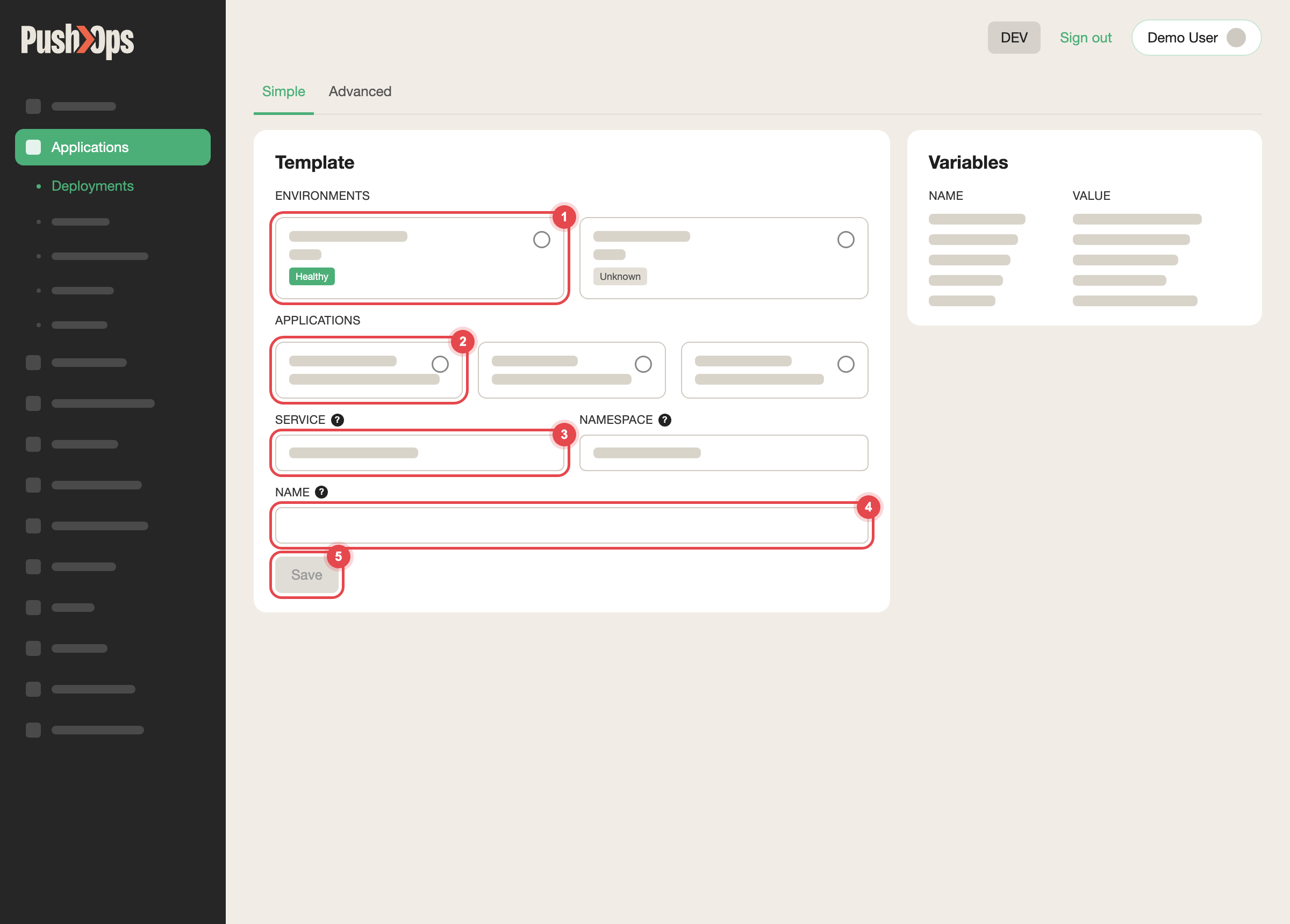
Choose the environment, the Catalog item, the Service and a name, then click Save
-
Configure the required values:
image_uri: <your-account-id>.dkr.ecr.<region>.amazonaws.com/rds-autorestore:<tag> environment_variables: SOURCE_DB: "<rds-instance-identifier>" SNAPSHOT_ID: "<snapshot-identifier>"SOURCE_DBis the RDS instance identifier, exactly as shown in the AWS
Console under RDS → Databases — not the Component name in SVIEW.- Use the image tag CTO2B provides. Ask in your Slack channel if you do not
have it; do not simply pick the newest tag in the repository.
-
Click Save and wait for the Component to reach a healthy status.
Step 2 — invoke the Lambda
- In the AWS Console, go to Lambda → Functions.
- Find the restore function. Its name is a shortened form of the Component name
ending in-aws-lbd— for example<stage>-<env>-share-<inst>-aws-lbd— so
search for-aws-lbdrather than for the full Component name. - Click Test. The event JSON is ignored.
- Click Test again to invoke it.
Follow progress in CloudWatch → Log Groups, searching for the Lambda function
name. A restore usually takes 10 to 30 minutes depending on database size.
If you invoke the function again after a timeout, it continues from where it
stopped — which can include deleting the original database before you have
confirmed that the restored copy is healthy. Check the CloudWatch log before each
repeat invocation, and take the manual snapshot described above first if you are
unsure.
Step 3 — re-apply the database configuration
Once the restore completes, increment the rev field in the database
Component's configuration and click Save:
terraform:
  variables:
    rev: 6    # increment each time you restore
rev does not change the database itself. Incrementing it makes the platform
re-apply the database Component's configuration, which brings back settings the
restore does not copy, such as backup retention, enhanced monitoring and storage
autoscaling. It must sit under terraform.variables; a rev under
terraform.spec.variables never reaches the configuration and has no effect.
Step 4 — clean up
After a successful restore, delete the RDS Auto Restore Component
in SVIEW. It holds permission to delete RDS instances, so it should not be left
in place once the restore is done.
Verify it worked
- The database Component returns to a healthy status in SVIEW.
- Your application reconnects, and the restored data matches the point in time
you expected. - Database users have the passwords they had when the snapshot was taken. If
passwords were rotated since then, or the application cannot log in after the
restore, raise a request and CTO2B will re-sync them.
Common issues
| Issue | What to check |
|---|---|
| The Component will not start | The image_uri tag does not exist in your registry, or the image is in a different region from the database. Confirm the tag and region in ECR. |
| The Lambda does nothing | SOURCE_DB is not the RDS instance identifier, or the source database no longer exists. |
| The Lambda stops after 15 minutes | Expected on larger databases. Invoke it again; it resumes. Read the warning under Step 2 first. |
The log shows cannot access local variable 'time' right after Disabling deletion protection | A known defect in image tag 0.0.5. Invoke the function once more; it completes. |
| The snapshot is not listed | It may be outside the retention window. See Database Backups and Point-in-Time Recovery. |
| The application cannot log in after the restore | Database users have the passwords they had at snapshot time. Raise a request and CTO2B will re-sync them. |
| The application still sees old data | The application is holding stale connections. Restart its pods to drop them — see Restart an Application or a Single Pod. |
If the issue persists, raise a request with the database name, the snapshot
identifier, and the CloudWatch log output.
Related articles
Updated 7 days ago