
IP Allowlisting for Applications and Databases
Restrict an application hostname to listed source IP addresses, remove that restriction, or request that an external IP can reach a database.
This page shows you how to restrict an application so that only listed source IP addresses can reach it (an IP allowlist, sometimes called a whitelist), how to remove that restriction again, and how to request that an external IP address be allowed to reach a database or other data service.
There are two kinds of allowlist, and who changes them differs:
| What you want to restrict or open | Where the allowlist lives | Who changes it |
|---|---|---|
| A hostname served through the platform ingress, such as an admin panel or a test site | The Component's Helm values in SVIEW | You, self-service |
| A database, cache, VPN or other data-service endpoint | The cloud network rules (security groups or firewall rules) in front of it | CTO2B, on request |
Before you start
- You can edit the application Component's configuration in SVIEW.
- You know the public source addresses to allow, in CIDR notation:
203.0.113.10/32for a single address,198.51.100.0/24for a range. Use the address your traffic leaves from, such as your office or VPN exit address, not a private one like10.x.x.x. - You know whether the hostname is proxied through a CDN such as CloudFlare. This changes which address the platform sees — see Hostnames behind CloudFlare or another CDN.
Restrict an application to listed IP addresses
The restriction is an ipWhiteList middleware on the Component's ingress. Requests from any address outside its sourceRange list are refused with 403 Forbidden.
This works only on Components that use the original application chart. The v2 chart — a chart name ending in
-v2in the Component's chart path — does not apply ingress middlewares, so anipWhiteListset there restricts nothing. For a v2 Component, raise a request instead. Deploy Without Downtime or Killing Running Work shows how to tell which chart a Component uses.
- In the SVIEW sidebar, go to Applications → Deployments and open the application Component in the Environment you want to restrict.
- Open its Helm values and, inside the existing
ingressblock, replacemiddlewares: {}with anipWhiteListmiddleware listing every address that must keep access:
ingress:
  # enabled, annotations, hosts and tls stay as they are
  middlewares:
    ipWhiteList:
      sourceRange:
        - 203.0.113.10/32    # office
        - 198.51.100.0/24    # company VPN exit range
The list applies to every hostname in that Component's ingress.hosts. To restrict one hostname and leave another open, they need to be served by separate Components.
-
Click Save. SVIEW syncs the change automatically and the Component redeploys its ingress.
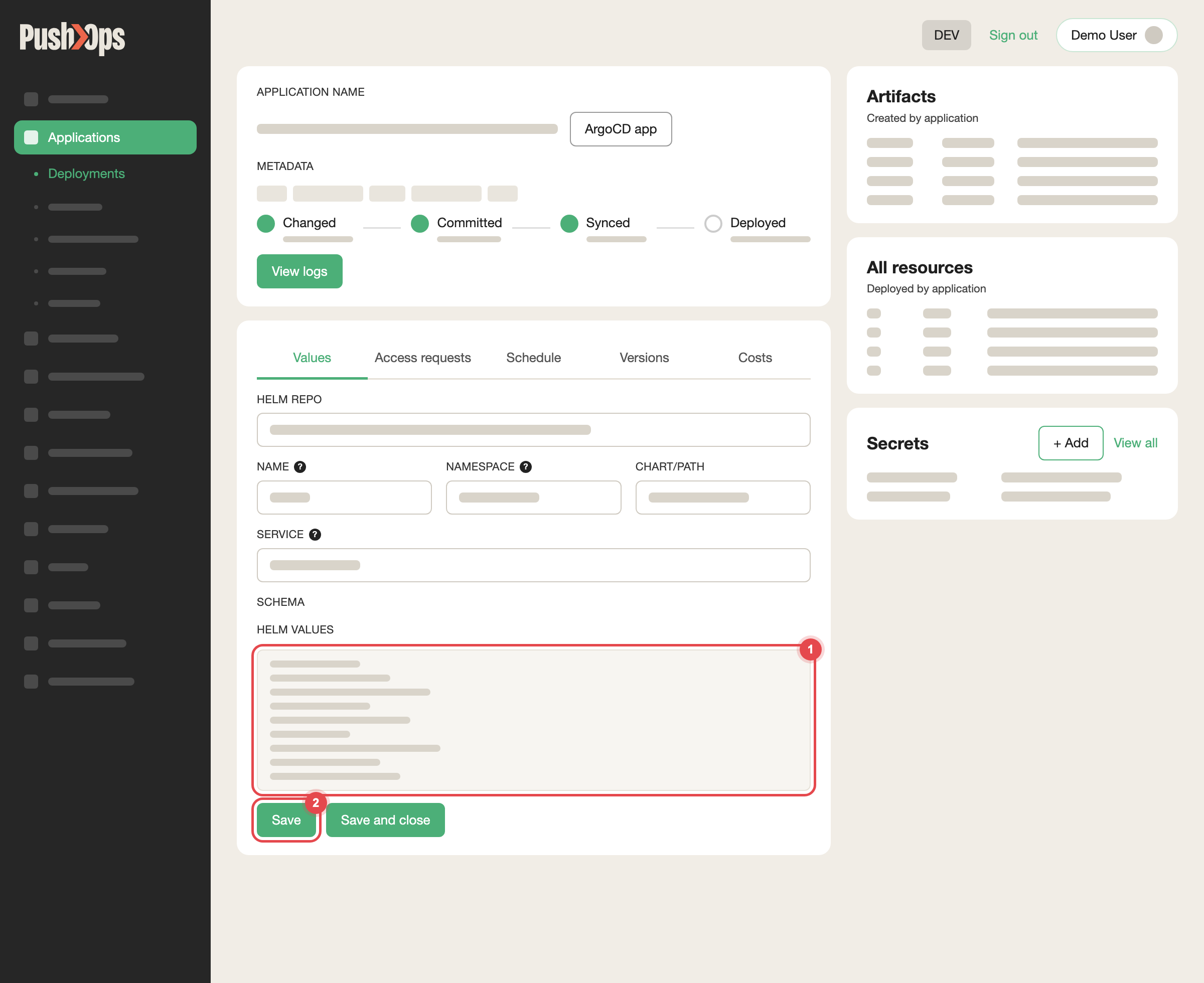
Edit HELM VALUES on the Values tab, then click Save
Add every address that legitimately calls the hostname before you save: your office, your VPN, CI runners, partner systems, and any external monitoring service. Anything left off the list is blocked from that moment.
If the hostname is monitored by the platform's external uptime checks, those checks are blocked too until their source address is on the list. See External Uptime Monitoring to get that address.
Add or remove an address later
Edit the same sourceRange list in the Component's Helm values and click Save. The list replaces the previous one, so keep the existing entries you still need.
Hostnames behind CloudFlare or another CDN
When CloudFlare Proxy (the orange cloud) is on for a hostname, requests reach the platform from CloudFlare's own addresses, not from your users. An ingress allowlist that lists your office address then blocks your office too, and every request returns 403 Forbidden.
For a proxied hostname, choose one:
- Restrict at CloudFlare. Add the allowlist as a rule in your CloudFlare account, which sees the real visitor address. Your CloudFlare account and its WAF rules are yours to manage.
- Stop proxying the hostname (grey cloud, DNS only), so the ingress sees the real source address and the ingress allowlist works as described above.
If you need the ingress to allow only traffic that came through CloudFlare, that is CloudFlare traffic shielding — see Ingress, Custom Domains and TLS.
Remove an IP restriction
In the Component's Helm values, set ingress.middlewares back to {} and click Save.
Removing the allowlist makes the hostname reachable from the whole internet. Check that the application has its own login before you remove it, especially for admin tools and non-production Environments, which search engines can otherwise find and index.
Verify it worked
- From an allowed address, the hostname loads as before.
- From an address that is not on the list, such as a phone on mobile data, the hostname returns
403 Forbidden.
If an allowed address also gets 403 Forbidden, see Ingress Troubleshooting.
Allow an external IP to reach a database or data service
Databases and other managed data services are not exposed to the internet. For your team's own access, use Connect to a Database, which needs no allowlist at all. An allowlist entry is for a system that cannot use that route, such as a partner's server, another cloud, or a reporting tool.
Security groups and firewall rules for data services are managed by CTO2B. Raise a request in your dedicated Slack channel containing:
- Source — the public IP address or range in CIDR notation, and who owns it
- Destination — the Environment and the data service, for example the production PostgreSQL Component
- Port and protocol — for example
5432/TCP - Why — one line on what the connection is for, so the rule is scoped no wider than needed
Once CTO2B confirms the rule is in place, test from the source system. If it still cannot connect, first check that the hostname it uses resolves to the current endpoint: a stale DNS record pointing at an old server looks exactly like a blocked connection.
The reverse: a third party needs to allowlist you
If an external partner asks for the IP address your applications call them from, that is your outbound (egress) address, not an allowlist on the platform. See Egress IP Addresses for Third-Party Allowlisting for what those addresses are and how to get them for each Environment.
Related articles
- Ingress, Custom Domains and TLS — hostnames and CloudFlare traffic shielding
- Ingress Troubleshooting — including
403 Forbiddenafter an allowlist change - Network Policies — traffic between workloads inside the platform
- Client VPN — reach private services without opening them to the internet
- Connect to a Database — audited database access with no allowlist
Updated 23 days ago