
Ingress Redirects, Rewrites, Headers and Request Limits
Configure redirects, path rewrites, headers, CORS, forward authentication and body size limits on a Component's ingress, and fix 413 and 504 errors.
This page shows you what you can configure on a Component's ingress beyond hostnames and TLS: 301 redirects from an old domain or path to a new one, rewriting or stripping a path prefix, adding or removing request and response headers, forward authentication, and request body size limits. It also explains what to do when uploads fail with 413 Request Entity Too Large or long requests fail with 504 Gateway Timeout.
How ingress middleware works
The platform ingress is Traefik. Everything on this page is a Traefik middleware that you add in the middlewares map inside the Component's ingress block, the same place an IP allowlist goes. Each key is a Traefik middleware type, and its value is that middleware's settings, written exactly as in the Traefik documentation.
Middlewares work only on Components that use the original application chart. The v2 chart — a chart name ending in
-v2in the Component's chart path — does not apply anymiddlewaresyou set, so the settings on this page have no effect there. For a v2 Component, raise a request with what you need the ingress to do. Deploy Without Downtime or Killing Running Work shows how to tell which chart a Component uses.
-
In the SVIEW sidebar, go to Applications → Deployments and open the application Component in the Environment you want to change.
-
Open its Helm values and, inside the existing
ingressblock, replacemiddlewares: {}with the middleware you need, using the examples below. -
Click Save. SVIEW syncs the change automatically and the Component redeploys its ingress.
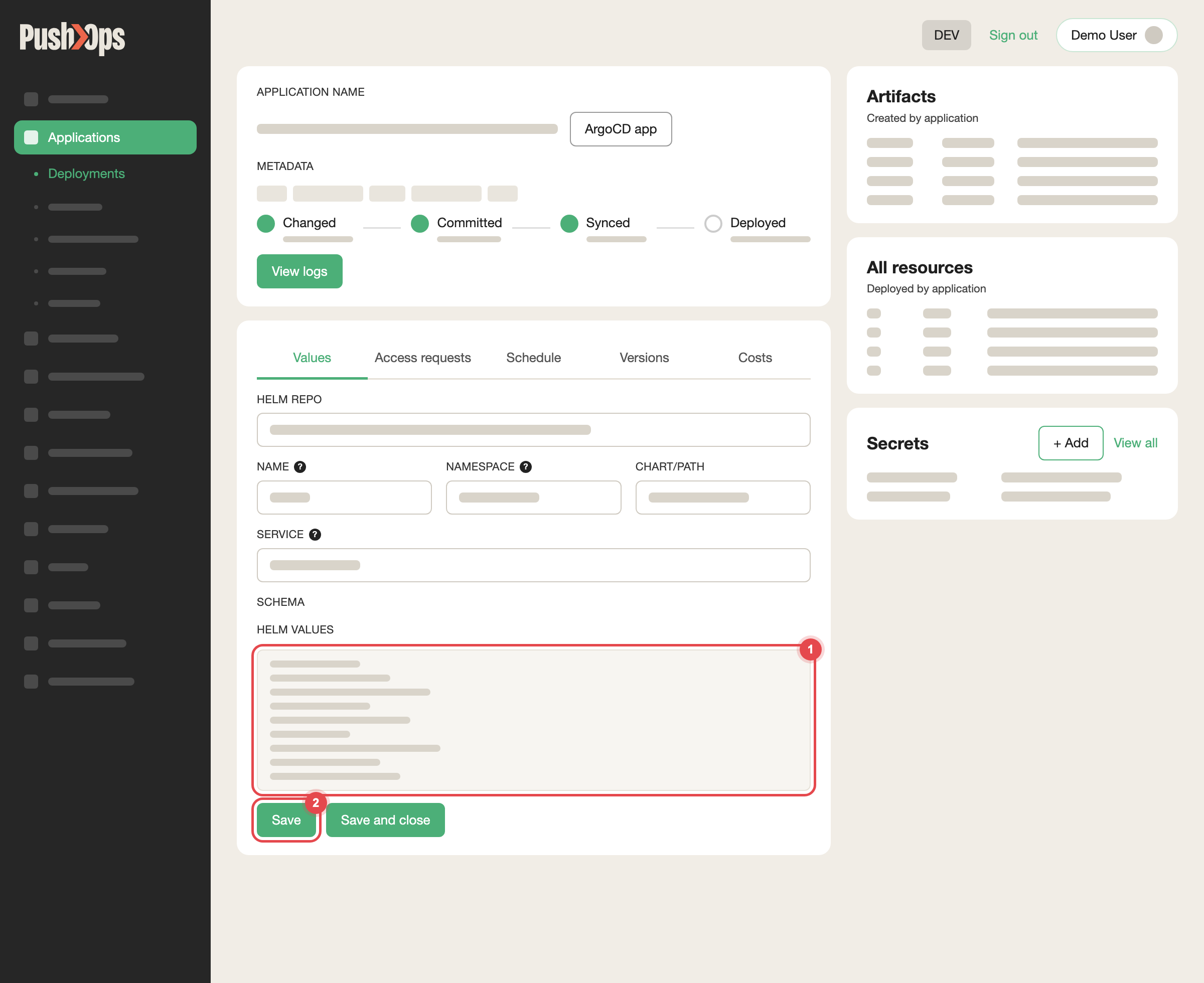
Edit HELM VALUES on the Values tab, then click Save
A few rules apply to every middleware:
- It applies to every hostname in that Component's
ingress.hosts. To treat one hostname differently, write the rule so it matches only that hostname (the redirect example below does this), or serve it from a separate Component. - Each type appears once per Component. You cannot add two
headersmiddlewares, so put all your header settings in one. - They run in alphabetical order of type, for example
headers, thenipWhiteList, thenredirectRegex, thenreplacePathRegex, thenstripPrefix. This matters when you combine path changes. - Setting names must match the platform's Traefik version exactly. The platform runs Traefik v2, so options added only in Traefik v3 are not accepted. A misspelled or unsupported option stops the Component from syncing; remove it and save again.
If a hostname is served by a standalone ingress Component rather than by the application Component, the same middlewares map sits inside each ingress entry of that Component.
Redirect an old domain or path with a 301
Use redirectRegex. The regular expression is matched against the full request URL, including the scheme and hostname, so it can redirect one hostname and leave the others alone.
First make sure the old hostname is listed in the Component's ingress.hosts and tls blocks, and that its DNS record points at the platform. The redirect can only run for requests that reach the ingress, and the platform needs a valid certificate for the old hostname to answer HTTPS requests to it. See Ingress, Custom Domains and TLS.
ingress:
  # enabled, annotations, hosts and tls stay as they are
  middlewares:
    redirectRegex:
      regex: "^https://old\\.example\\.com/(.*)"
      replacement: "https://www.example.com/${1}"
      permanent: true
permanent: true sends 301 Moved Permanently. Leave it out, or set it to false, for a temporary 302 Found while you test, because browsers cache 301 redirects hard.
To redirect a single path instead of a whole domain, match that path:
  middlewares:
    redirectRegex:
      regex: "^https://www\\.example\\.com/old-docs/(.*)"
      replacement: "https://www.example.com/docs/${1}"
      permanent: true
You do not need a redirect from HTTP to HTTPS. The platform already redirects plain HTTP requests to HTTPS for every hostname.
Strip or rewrite a path prefix
Use these when your application expects requests at / but is published under a path such as /api. The browser URL stays the same; only the path your application receives changes.
To remove a prefix, use stripPrefix. A request for /api/orders reaches your application as /orders:
  middlewares:
    stripPrefix:
      prefixes:
        - /api
To replace one path with another, use replacePathRegex. A request for /reports/2026 reaches your application as /v2/reports/2026:
  middlewares:
    replacePathRegex:
      regex: "^/reports(.*)"
      replacement: "/v2/reports${1}"
To add a prefix, use addPrefix. A request for /status reaches your application as /queues/status:
  middlewares:
    addPrefix:
      prefix: /queues
Traefik passes the original prefix to your application in the X-Forwarded-Prefix header when stripPrefix removes it. Frameworks that build absolute links, such as admin panels, often need to be told about the prefix so that their links and redirects keep it.
Add, change or remove headers
Use one headers middleware for all header settings. Custom request headers are added before the request reaches your application, custom response headers before the response reaches the client. An empty value removes the header.
  middlewares:
    headers:
      customRequestHeaders:
        X-Environment: "production"
      customResponseHeaders:
        X-Robots-Tag: "noindex, nofollow"
        Server: ""                      # remove the header
      stsSeconds: 31536000              # Strict-Transport-Security
      stsIncludeSubdomains: true
      frameDeny: true                   # X-Frame-Options: DENY
      contentTypeNosniff: true
      referrerPolicy: "strict-origin-when-cross-origin"
The same middleware handles CORS, if you prefer the ingress to answer CORS preflight requests instead of your application:
  middlewares:
    headers:
      accessControlAllowOriginList:
        - "https://app.example.com"
      accessControlAllowMethods:
        - GET
        - POST
        - OPTIONS
      accessControlAllowHeaders:
        - Content-Type
        - Authorization
      accessControlAllowCredentials: true
      accessControlMaxAge: 600
Configure CORS in one place only. If both the ingress and your application send Access-Control-Allow-Origin, browsers see the header twice and reject the response.
Forward authentication to your own auth service
Use forwardAuth to have the ingress ask an authentication service before each request reaches your application. The service answers 2xx to let the request through, or any other status to refuse it, and the ingress returns that answer to the client.
  middlewares:
    forwardAuth:
      address: "http://auth-service.my-namespace.svc.cluster.local:8080/verify"
      trustForwardHeader: true
      authResponseHeaders:
        - X-User-Id
        - X-User-Email
authResponseHeaders lists the headers from the auth service's answer that are copied onto the request your application receives. The auth service receives the original request headers, not the request body. Forwarding the body to the auth service (forwardBody and maxBodySize) is a Traefik v3 option and is not supported on the platform; a Component that sets it will not sync.
For a password prompt on a non-production site (basicAuth), or a login in front of an application that has none, raise a request in your dedicated Slack channel, because it needs a credential stored on the platform.
Uploads fail with 413 Request Entity Too Large
The platform ingress sets no request body size limit of its own, so a 413 Request Entity Too Large comes from one of these, most likely first:
- A web server inside your container. nginx, for example, rejects bodies larger than 1 MB unless
client_max_body_sizeis raised. Application frameworks often have their own upload limit too. The error page usually names the server that sent it. - CloudFlare, if the hostname is proxied (the orange cloud). CloudFlare limits the upload size per request according to your CloudFlare plan. Uploads larger than that must go to a hostname that is not proxied.
- A
bufferingmiddleware on the Component, if someone added one.
You can also set a limit yourself, to reject oversized uploads at the ingress before they reach your application. Requests larger than maxRequestBodyBytes are refused with 413:
  middlewares:
    buffering:
      maxRequestBodyBytes: 52428800     # 50 MB
buffering holds the whole request in the ingress before forwarding it, so keep the limit only as high as you need.
Long requests fail with 504 Gateway Timeout
A 504 Gateway Timeout, or a 502 that always appears after the same number of seconds, means a load balancer or proxy in front of your application closed the request before your application answered. Timeouts are set on the platform load balancer and ingress, not in the Component's Helm values, so you cannot change them yourself.
Before asking for a longer timeout:
- Check whether the time is always the same. A cutoff at a consistent interval, often around 60 seconds, is a timeout. Failures at random times usually are not; check the application's logs and resource usage first.
- Check CloudFlare. A proxied hostname has its own limit of about 100 seconds and returns
524rather than504. - Consider changing the request. For reports, exports and large uploads, a request that starts the job and returns at once, followed by polling or a callback, is more reliable than any timeout. For large files, uploading straight to object storage with a pre-signed URL avoids the ingress entirely.
If you still need a longer timeout, raise a request with the Environment, the hostname and path, the time at which requests fail, and the longest time a request legitimately takes. For WebSocket connections that close after a period of silence, see Sticky Sessions and WebSockets.
Anything else
Other ingress behaviour, such as rate limiting, retries, custom error pages, mutual TLS client certificates or a password prompt, is set up by CTO2B. Raise a request in your dedicated Slack channel with the Environment, the Component, the hostname, and what you need the ingress to do.
Verify it worked
- Redirect:
curl -sI https://old.example.com/some/pageshows301 Moved Permanentlyand alocation:header pointing at the new URL. - Path rewrite: the application's access log shows the rewritten path.
- Headers:
curl -sI https://www.example.com/shows the added response headers, and no longer shows the removed ones.
curl -sI https://old.example.com/some/pageIf the Component does not sync after you save, the most likely cause is a misspelled setting or one that the platform's Traefik version does not support. See Ingress Troubleshooting.
Related articles
- Ingress, Custom Domains and TLS — hostnames and certificates
- IP Allowlisting for Applications and Databases — the
ipWhiteListmiddleware - Ingress Troubleshooting — when a hostname does not respond as expected
- Sticky Sessions and WebSockets — session affinity and idle connections
Updated 23 days ago